- ARBURG ALLROUNDER year of construction 2012 or later = OPCUA Interface
- ARBRUG ALLROUNDER year of construction before 2012 = Serial host computer interface
- Third-party machine (non-ARBURG machine) = EUROMAP 63 or EUROMAP 77 interface
- I/O module: 1-fold/ 8-fold/ 16-fold + VE 612/40 Mobile licence package
If you are not sure, please contact the ALS hotline.
A connection to the ALS and the machine must be established:
- Connect the network cable on the machine.
- Each machine is assigned a unique IP address (static).
Ask your network administrator which IP address, subnet mask and standard gateway you are allowed to use.
Get a 'superuser' authorisation card and use it to log on to the machine.
NOTICE: The data input in this video serves only as an example. Request the specific data matching your system from your system administrator.
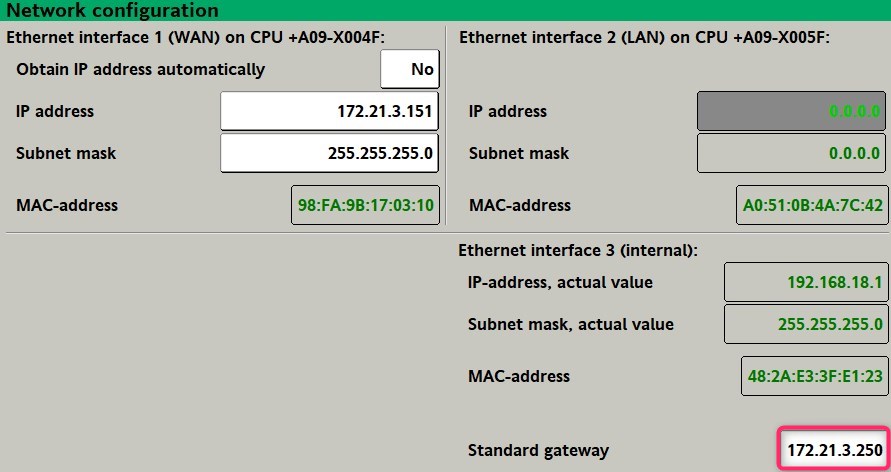
1) To configure the IP address on the machine, call up the following screen page and enter the IP address, subnet mask and the standard gateway on the machine.
2) Restart the OPC UA server of the machine:
In order that the address is taken over during ongoing operation, set the "OPC UA server" field on the next page to "No" and then to "Yes" again.
NOTICE - the data input in this illustration serves only as an example. Request the specific data matching your system from your system administrator.
Dialogue on newer machines:
Information: In case of a newer machine, the field for the standard gateway address may be found at the bottom right:
3) Data input in the ALS
Proceed as follows to create the machine in the ALS master data:
Call up the Master data / machine" in the ALS.
 Use the "Add machine" function to create a new machine. The configuration for the new machine may look as follows:
The most important point here is the "Controller / protocol" selection field. This MUST comply with the controller of the machine. In this example, a new machine is connected via OPC UA. 'SELOGICA 5.100 OPC UA' is thus selected from the list.
Click on "Next" and enter the IP address that has been assigned to this machine in the "OPC server URL" field.
In case of a SELOGICA controller version 4.090 or older, the IP address has already to be entered in the "IP address" field on the first page.
The machine should now be displayed when you switch to the "Machine hall" module".
- If the machine is still not online in the ALS after several minutes, switch the machine off and on again.
- Does the MAC address of the machine need to be shared by your network administrator? The MAC address of the machine is to be found on the "Network configuration" screen page of your machine (see above video).
- Is the ping from the ALS server to the machine possible? Open the "Command" dialogue on the ALS server and try to reach the machine by ‘ping’.

-> If the ping works, check the settings of the machine in the ALS master data again. If the settings are correct as well, please contact the service hotline.
- If the ping does not work, your 'Machine network' may not have been patched correctly, your network cable may be damaged, there may be a contact error in the plug or one of your network switches may not have been configured correctly.
In case that all attempts fail, please contact the hotline: e-mail: als_support_germany@arburg.com // tel.: +49 744633 3401.
The machines are located in the same network segment as the ALS server. The tools of the ALS send a 'broadcast' to the network, to which the communication nodes of the machines respond. This broadcast does not work via routers. Routers are required to get to another network segment.
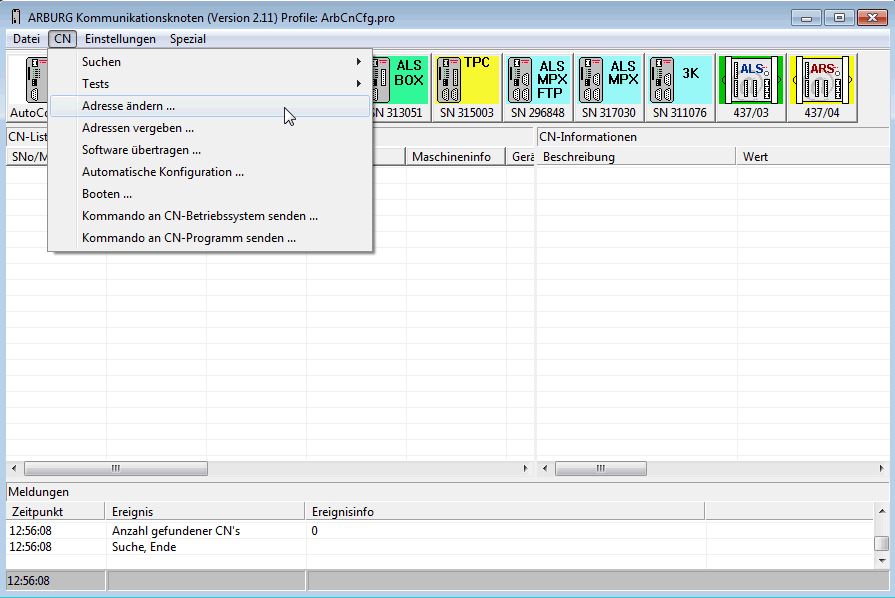
The 'ArbCnCfg2.exe' tool is to be found in the 'als50\admin\cn\tools\bc440cfg' directory on the ALS server. Copy the complete 'bc440cfg' directory to a laptop. Connect the laptop to a machine. Start the 'ArbCnCfg2' tool. The machine should then be displayed in the 'ArbCnCfg2' (CN list). You can call up the function for changing the IP address from the "CN" menu or the context menu (right mouse button).
Enter the static IP address here which you want to assign to this machine.
In order to connect a third-party machine to the ALS, the following requirements must be fulfilled:
- ALS licence for third-party machines VE 612/13 - the number of licences must correspond with the number of machines which are to be connected to the ALS.
- Interfaces on the machine have to be retrofitted by the manufacturer
If the requirements are fulfilled, please contact the hotline (e-mail: als_support_germany@arburg.com // tel.: +49 744633 3401). We will assist you with the integration of the third-party machine.