 Logon
LogonThe ARBURG Host Computer System (ALS) consists of modules (software programs which cover the various task requirements), and of ALS Clients which provide access to the data and functions of ALS. An ALS Client is an autonomous program whose files are generally located locally on the computer on which it is started. The ALS modules are located centrally on a server. The modules and clients communicate with each other through the network.
Below you will find instructions on how to carry out basic sequences in the 'ALS Client' and to program the Client according to your requirements.
Logon
Appearance of the ALS Client
Change password
Configuration of the machine hall
Configuration of lists
To obtain access to the 'ALS-Client' you must first 'log on'. To do this you need a 'User' name and a 'password' from your system administrator.
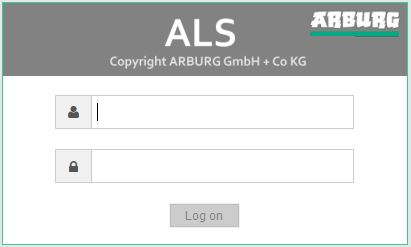
The administrator will assign certain access rights to your user, in accordance with your task requirements. This means that you will not be able to use all functions of the ALS. Inhibited functions can be recognised by the fact that are displayed in pale grey (deactivated).
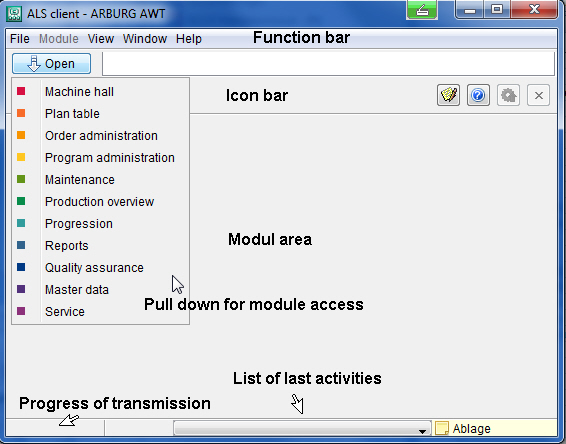
In the upper part of the Client window you will find the 'function bar' and underneath this the 'icon bar'. As long as no modules have been activated, only the basic functions such as 'log off', 'quit', and 'help' are displayed here. As soon as you select a module, further functions specific to the selected module(s) are added to the bars.
On the left-hand side of the window is the module column. Select the required module by clicking on the flag or on the text. The selected module is now displayed in the module window. When a module is activated or updated, the progress of the transmission of data relating to this module is displayed at the bottom left of the window. A tick in the flag in the module column indicates that the module is currently active (in display). The display of several modules can be currently active at the same time. By clicking on the module designation in the module column you bring the respective window to the front of the display.
 |
Any modules which are currently not available and locked functions are also displayed in pale grey. |
 |
The F1 key is used to call up a Help text relating to the active module. This text can also be displayed by clicking on the icon pictured on the left. |
After logging onto the ALS for the first time, you should change the general password which you have received from the ALS Administrator to a personal one.
To do this, call up the function 'Change password' in the 'File' menu.
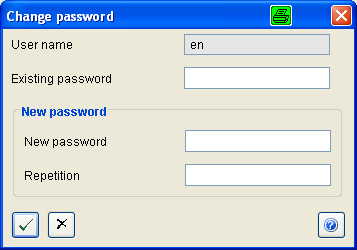
Input the 'existing password' given to you by your Administrator and then input your new password, repeating it again at 'repetition'.
When inputting your new password, please observe capitalization!
Start the 'Machine hall' module and select the required hall in the selection column of the module. Start the 'Edit mode' function in the 'Extras' menu. The machine hall then fills the entire display area of the module.
In the 'Edit' mode of the machine hall you can drag the 'machines' to the required position and adjust the size of the machine symbol.
|
The changes made here apply only for your 'User'. |
If you want to undertake changes to several machine symbols simultaneously, left click the machines while keeping the 'Ctrl'-key pressed down. Selected machines are displayed with an orange frame.
To change the position of a machine symbol left click on the machine and, keeping the mouse key suppressed, drag it to the new position.
The size of one or more machine symbols can be changed by selecting the machines with the left mouse key and then activating the '+' symbol to increase the size or the '-' symbol to decrease it. Alternatively, you can use the functions in the 'Editor' menu. To increase/decrease the size of just one single machine you can call up the 'Pop-up' menu by right clicking on the machine.
For the display of the machine designation you can select the font and font size. The changes you make here apply to all machines.
If you want the changes you have made to apply again in your next session, they can be saved with the function 'Save settings (Ctrl + S)' in the 'Module' menu. Otherwise your changes will only apply to the current session. In the 'Module' menu you will also find the function 'Reset settings'.
You quit the 'Edit'-Modus again via the  button or the function 'Close editor' in the 'Module' menu.
(for additional information see ' Machine hall ')
In the 'ALS Client' there is a variety of lists. These lists can be configured to a large extent to the individual requirements of the user. You can save the changes you have made via the 'module' menu and 'save settings' option. This means that when you have undertaken changes to a list you will call up this changed version when you next log on.
(for additional information see ' List configuration ')
Do you need our support?
You can reach us here:
Telephone number: +49744633 3401
E-mail address: als_support_germany@arburg.com
 Tutorial -> Introduction